 FolloweUS
 How to Save TikTok Videos on iPhone (2026)

Forget the native 'Save Video' button. If you want a clean, HD file without that bouncing watermark on your iPhone, you need the Safari Method. Here's the ultimate 2026 guide to downloading TikToks directly to your camera roll.
Step-by-Step: The Safari Method
Step 1: The Precise Copy

Open the TikTok app. When you find the video you want, tap the Share arrow. Look for the gray 'Copy Link' icon.
Pro Tip: Make sure you don't copy a 'Live' link or an expired 'Story' link; ensure it's a standard Video or Reel URL.
Step 2: Safari Execution

Open Safari (or Chrome/Brave on iOS). Navigate to the FolloweUS TikTok Downloader. Paste the URL into the search bar. Our engine decodes the video's metadata and extracts the raw MP4 stream from the server. Tap Download and wait for the iOS popup asking 'Do you want to download...?'—Tap Download again.
Step 3: Move to Photos

Tap the blue download arrow in the Safari address bar. Open the file. Tap the Share Sheet (the square with the up arrow) and select 'Save Video'. The video is now in your Photos app under 'Recents,' free of any watermarks and in original 1080p resolution.
Device Compatibility
This method is verified for 2026 on the following hardware:
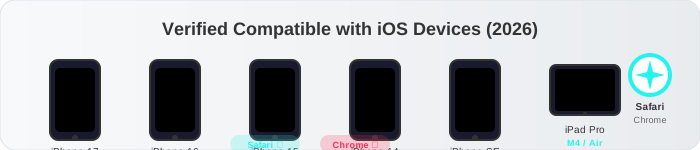
- iPhone 12/13/14/15/16 Series (iOS 17/18/19/20)
- iPad Pro, Air, Mini (iPadOS 17+)
- Safari (Native), Chrome, Brave, Edge on iOS